Attaching a rubric to an assignment
Attaching a rubric to an assignment
To attach a rubric to an assignment, you must first create a rubric and set its Status to Published. (See article on publishing rubrics here.)
1. In the navbar, navigate to Course Tools and click Assignments in the dropdown menu.
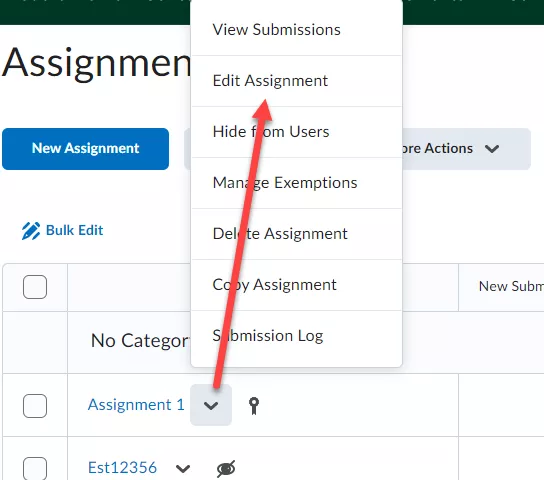
2. Click Edit Assignment from the context menu of the assignment you want to attach a rubric to.
3. Click the Evaluation and Feedback drop-down arrow.
4. Click Add Rubric.
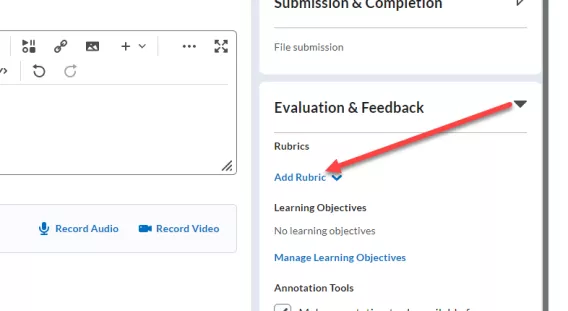
5. From the menu that appears, click Add Existing.
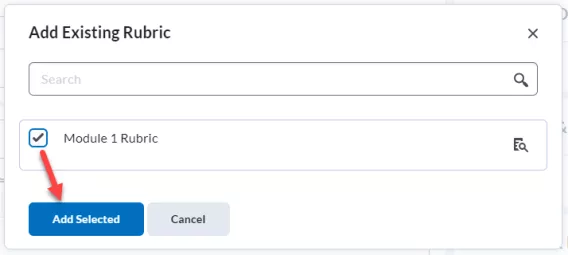
The Add Existing Rubric window appears.
6. Select the check box for the rubric you want to attach to the assignment.
7. Click Add Selected.
8. Click Save and Close.
Result
The rubric has now been attached to the assignment
NOTE: When an instructor attempts to delete a rubric that is attached to an evaluated assignment, the instructor must confirm that they want to detach the rubric from the assignment.


